
TABLE OF CONTENTS
- 1. Dashboard:
- 2. Access:
- 3. Login history
This guide provides a structured overview of how to manage and configure the BreeceGo App within Breece Cloud.
It guides you through the Dashboard, Access settings, user‑level configuration, and login history, ensuring you can efficiently control app behavior across groups, installations, and individual users.
Mobil app:
The Mobile App section in Breece Cloud gives you quick access to everything related to the BreeceGo App.
From here, you can easily manage settings for both groups and individual installations.
This guide shows you where to find the BreeceGo configuration and how to navigate the options available.
In this section, the user can:
- Download BreeceGo onto their phones.
- Create a special login code (called a QR code).
- See who is currently using the app and when they last logged in.
- Change a few settings to suit store’s needs.
Process:
- Click on ‘Mobile app’ in the menu on the left side of the screen.
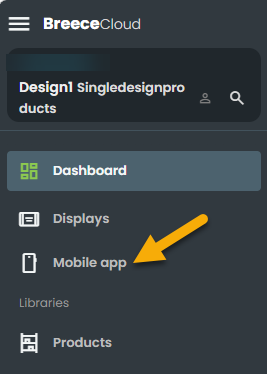
1. Dashboard:
When the Mobile App page opens, the Dashboard tab is automatically selected. 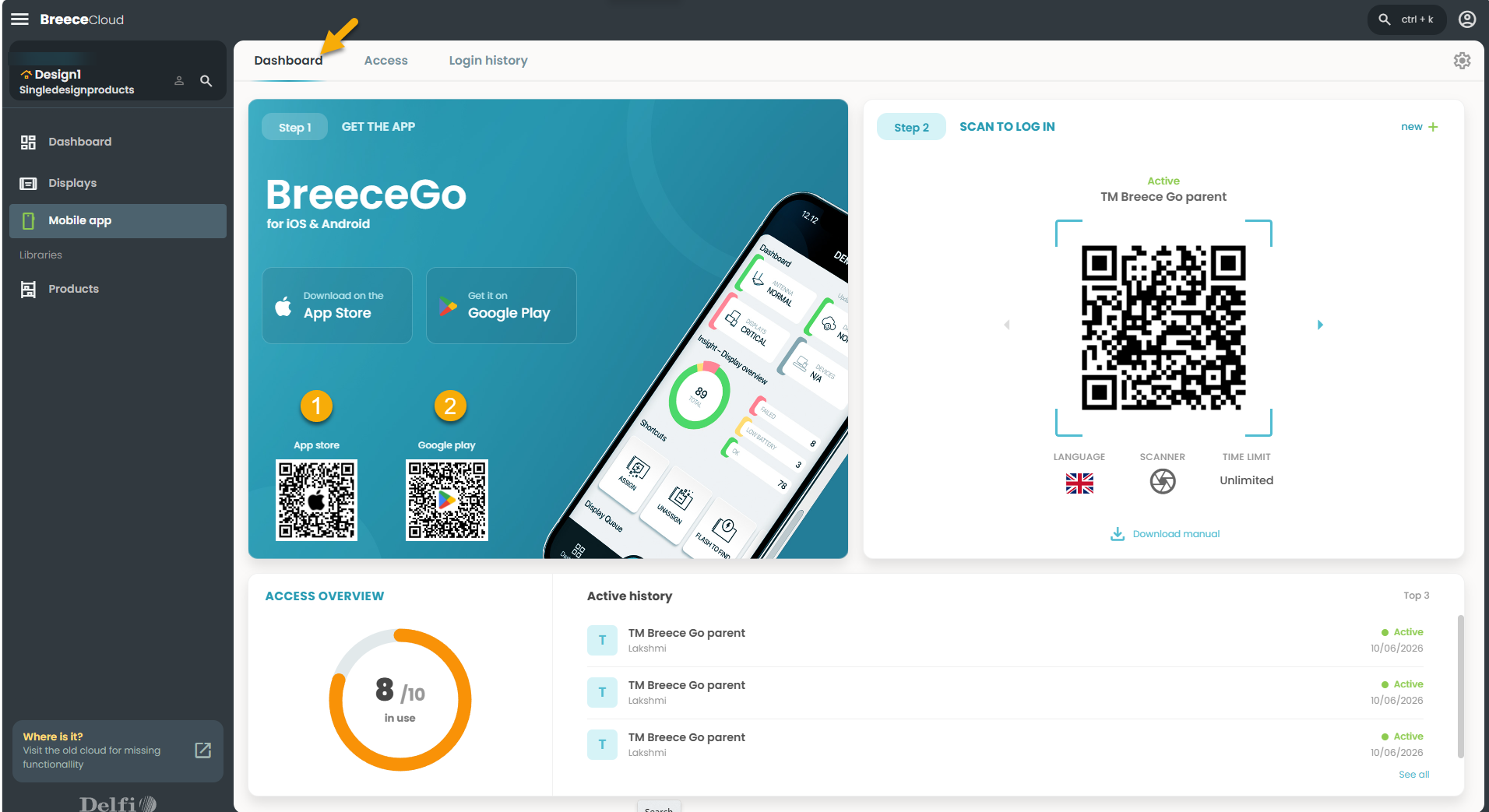
- Click Access, located next to Dashboard.
1.1 Download the App
The left panel shows two QR codes —
One for iPhones (App Store)
One for Android phones (Google Play)
1. Scan the App Store QR code on the left with an iPhone.
2. Scan the Google Play QR code with an Android phone.
BreeceGo downloads and installs on their phone in a few seconds.
1.2 The Login QR Code
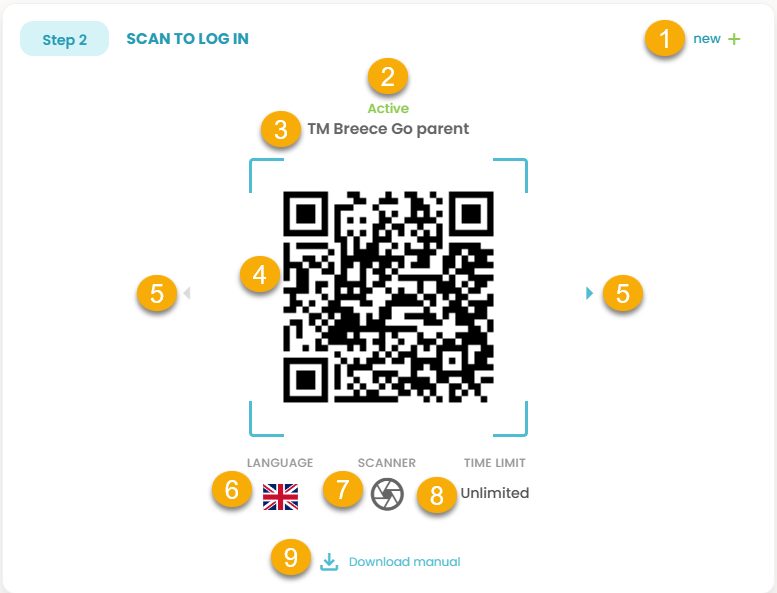
| Number | Description |
|---|---|
| 1 | New+: Used to create a new access. Discussed in section 1.4. |
| 2 | Active: means someone is currently logged in using this QR code. Inactive means nobody is using it right now. |
| 3 | Name of the Installation the user is about to log in to. |
| 4 | QR code: Scan the QR code. Point the phone camera at this to log in to BreeceGo. |
| 5 | Arrows: Use the arrows on either side to switch between different QR codes if you have more than one. |
| 6 | Language: The flag shows what language BreeceGo will be in when someone logs in with this code. |
| 7 | Scanner: The icon shows how the user will scan price tags by default. |
| 8 | Time limit: Defines how long a user stays logged in. Unlimited means no automatic sign‑out. |
| 9 | Download manual icon: Lets you download a printable guide to hand out to the user. |
1.3 Access overview
This part of the Dashboard gives you a quick, at-a-glance of how your BreeceGo login codes are being used.

1. The donut chart: Shows the access overview.
2. Active history: This list shows the most recent BreeceGo sessions in your store.
Each row tells you:
- The name of the QR code used to log in,
- The username,
- The session is still Active (shown by a green dot),
- The date it was last used.
3. Top 3 : just a summary of devices logged in.
4. See all: A click on "See all" in the bottom-right corner opens the complete Login History page.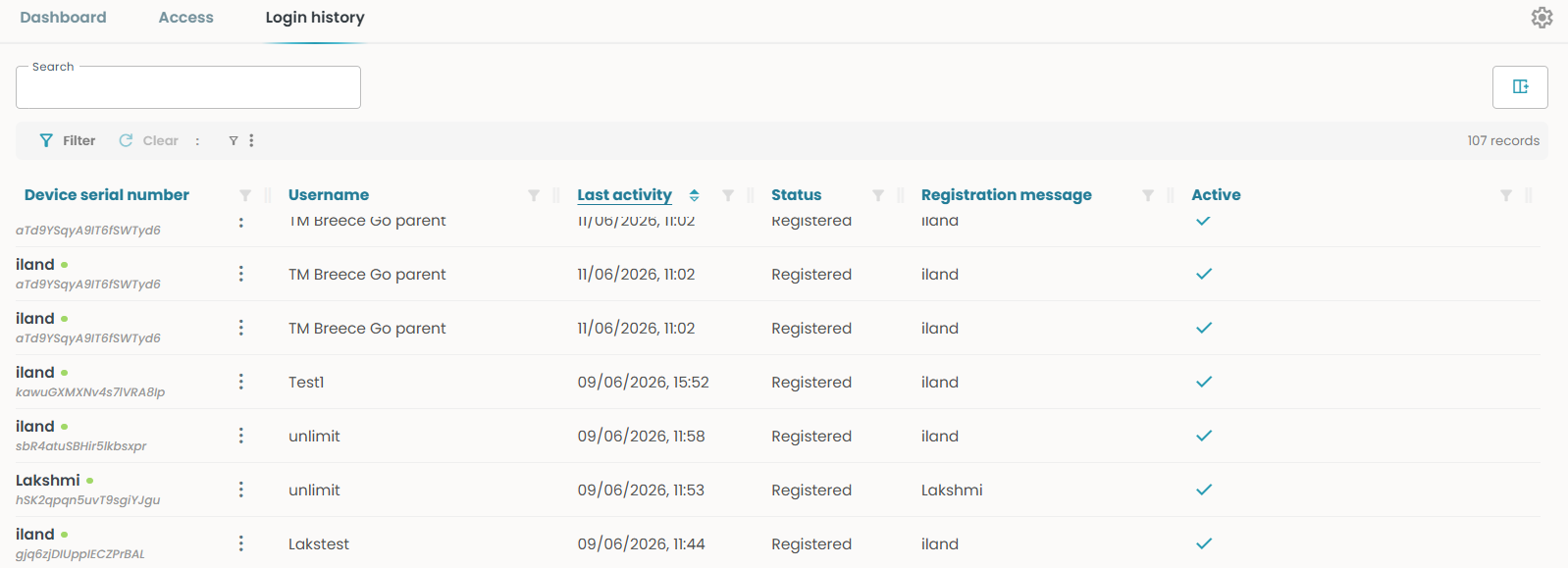
1.4 New+
You can generate different QR codes for different purposes. For example:
- One login code for your Danish-speaking team (app shows in Danish).
- One for your English-speaking team (app shows in English).
- One for temporary workers that automatically expires after a few hours.
- One permanent one for your store manager.
The same QR code can be used on many phones at the same time.
• Click the ‘+ new’ button in the top-right corner of the QR code panel on the right.
A new panel slides in from the right side of the screen.
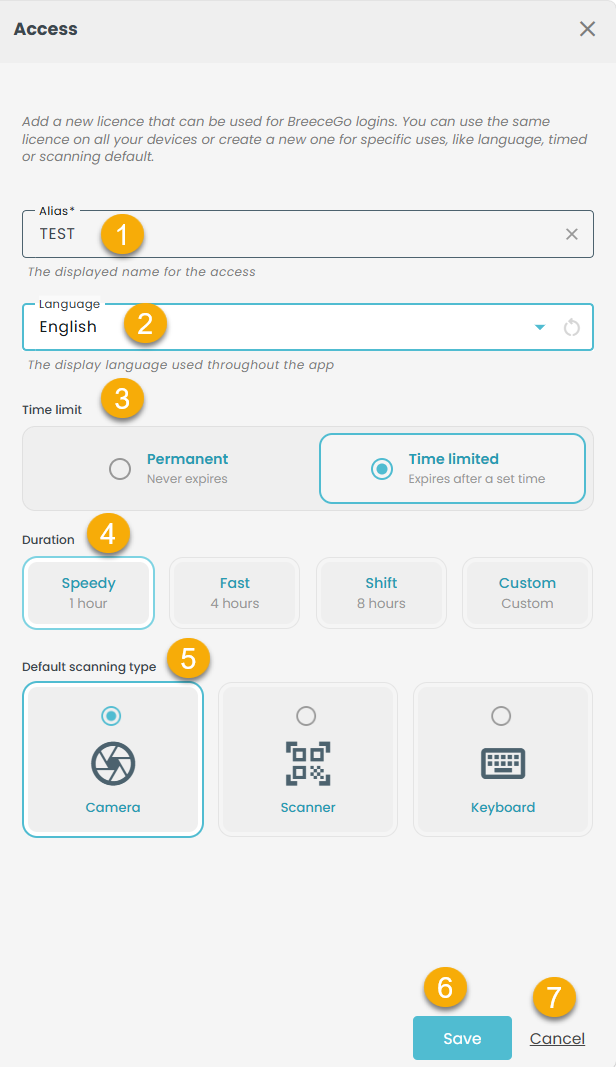
1. Alias: Type a name to identify this login code.
2. Language: Select the language.
3. Time limit: Choose how long the login stays active.
- Permanent - never expires.
- Time limit - automatically logs out after the duration you set.
4. Duration: Only appears when 'Time limited' is selected.
Choose from:
- Speedy -1 hour
- Fast - 4 hours
- Shift - 8 hours
- Custom - any duration you need
5. Default scanning type:
Select how the user will scan price tags by default
- Camera - uses the phone camera
- Scanner - for dedicated handheld devices
- Keyboard - The user enters manually
6. Save: Click to generate the login code. It’s created instantly, and the QR code appears on the Dashboard.
7. Cancel: Cancel the panel without saving anything.
2. Access:
- Click on ‘Access’ in the tabs at the top of the page.
QR Codes appear in two groups—Limited and Unlimited.
Each shown as a card with name, QR, duration, and language.
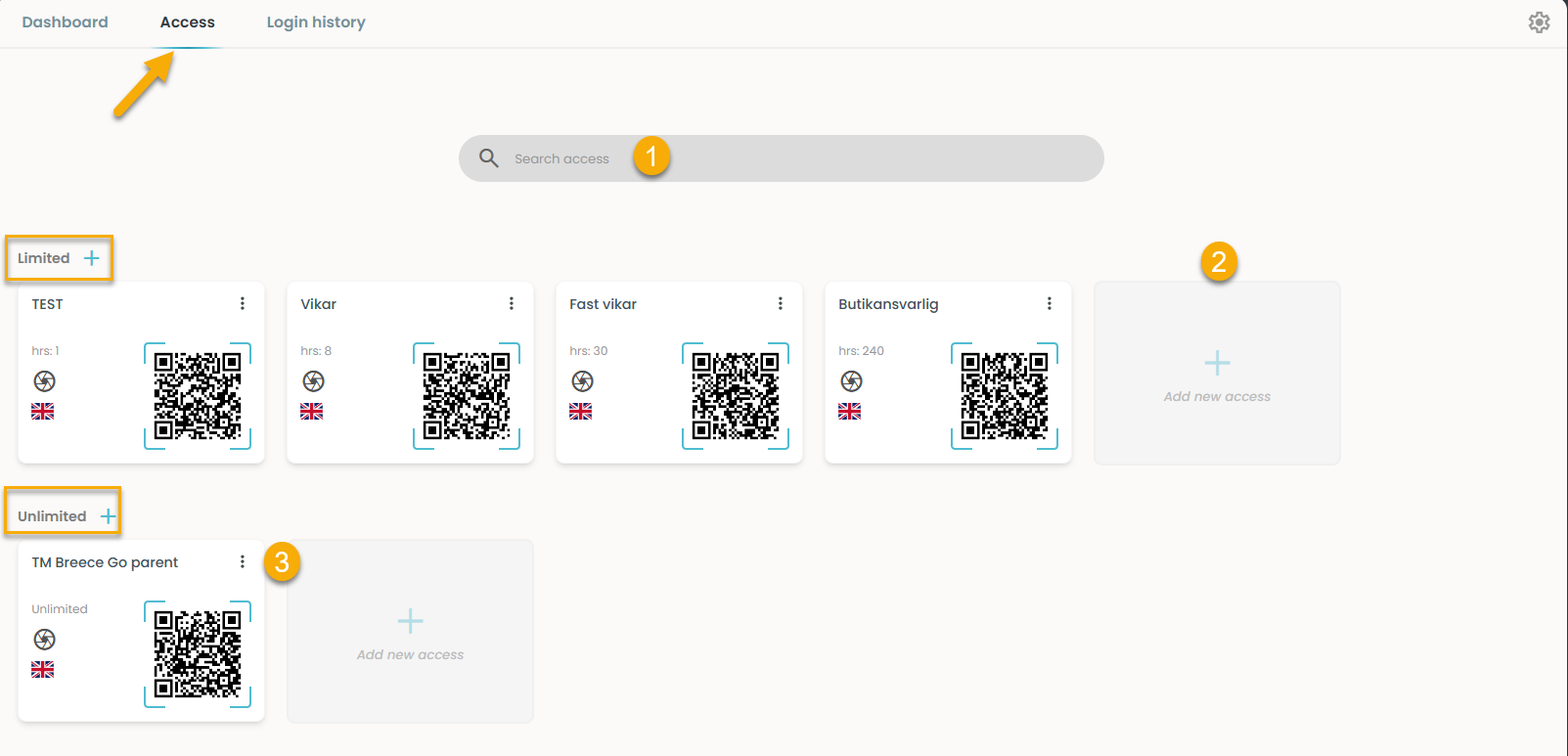
1. Search access:
Use the search bar at the top to quickly find a specific login code by name.
2. Adding a new login code:
Click the + Add new access card at the end of each group to create a new login code within that group.
3. Managing a login code:
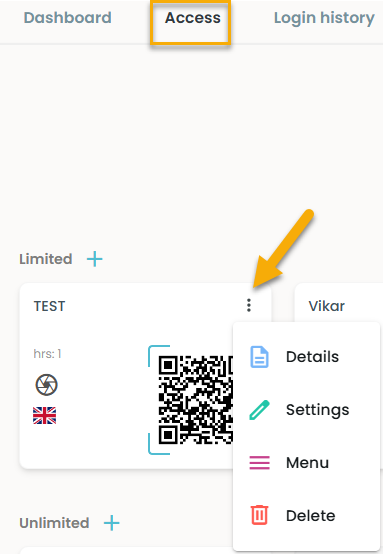
Click the three dots (⋮) in the top-right corner of any card to edit or delete that login code.
2.1 Change the settings for BreeceGo - Group/Installation level
Click the small settings icon (⚙) in the top-right corner of the Mobile App page. Opens with two tabs: Settings and Menu.
2.1.1 General
This page allows the user to manage the default settings for all your BreeceGo devices in one place.
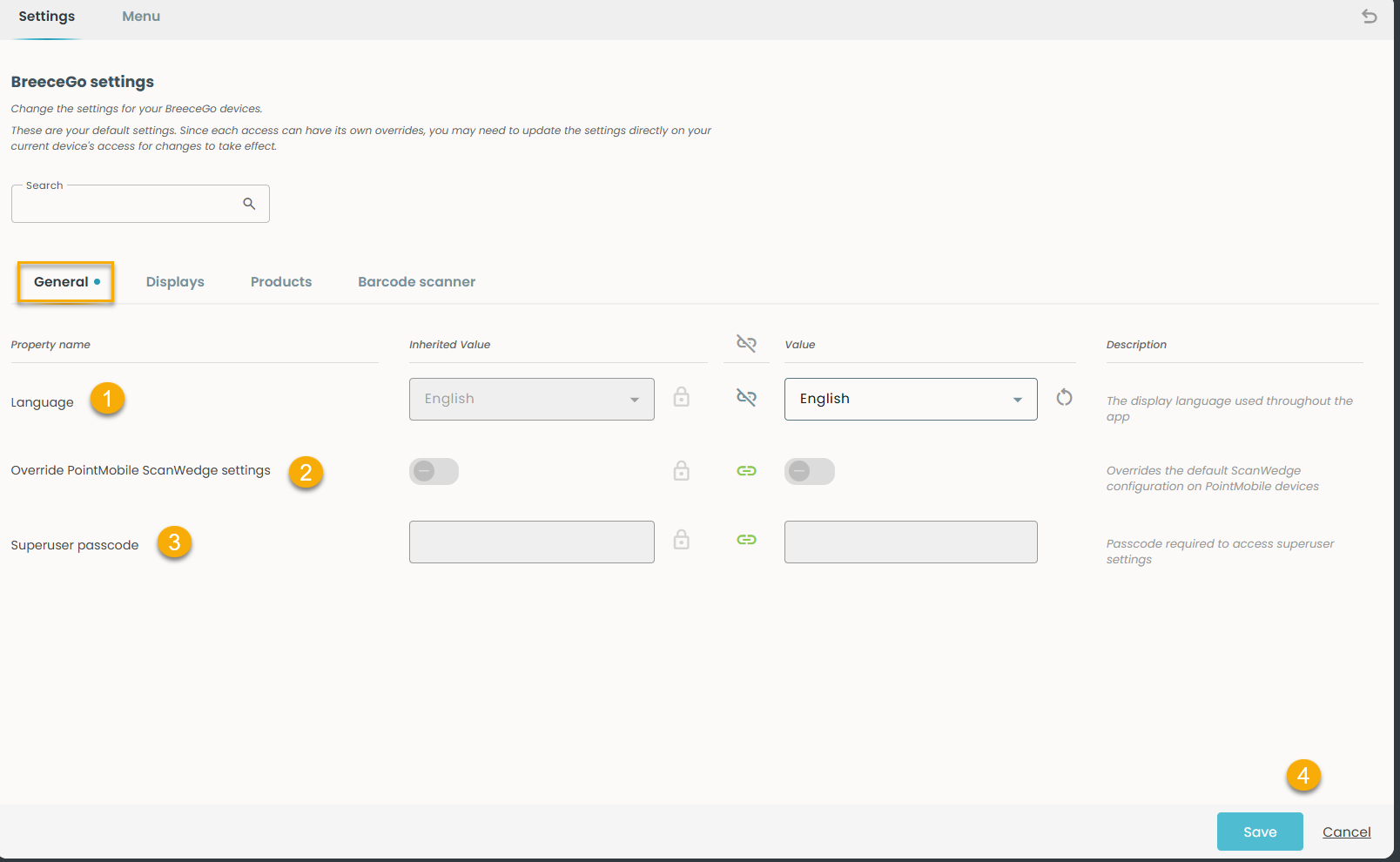
1. Language:
Sets the default language BreeceGo displays across all devices. Both the inherited and current value are set to English. The dropdown on the right to change it to a different language
(Danish, German, Norwegian, Dutch, Italian, Swedish).
2. Override PointMobile ScanWedge settings: A toggle that, when enabled, allows BreeceGo to control scanner settings on PointMobile handheld devices.
3. Superuser passcode: A code that protects access to advanced settings on the device.
4. Save: Click to apply your changes.
Each setting is displayed in two columns:
- Inherited Value on the left
- Value on the right
 shows that the function is on.

shows that the function is off.
A. Understanding the lock icon:
Before making any changes, it helps to understand two small icons on every row:

- Shows the setting is default and cannot be edited here.

- Click the lock to allow editing of the Inherited Value for that row.
B. Understanding the chain link icon :
Chain link icon shows whether the Inherited Value and the Value are linked or independent for that row.

- Green solid chain link: The Value column is using the Inherited Value. They are in sync.

- Broken chain link: The Value column has its own independent setting, different from the Inherited Value.
2.1.2 Displays
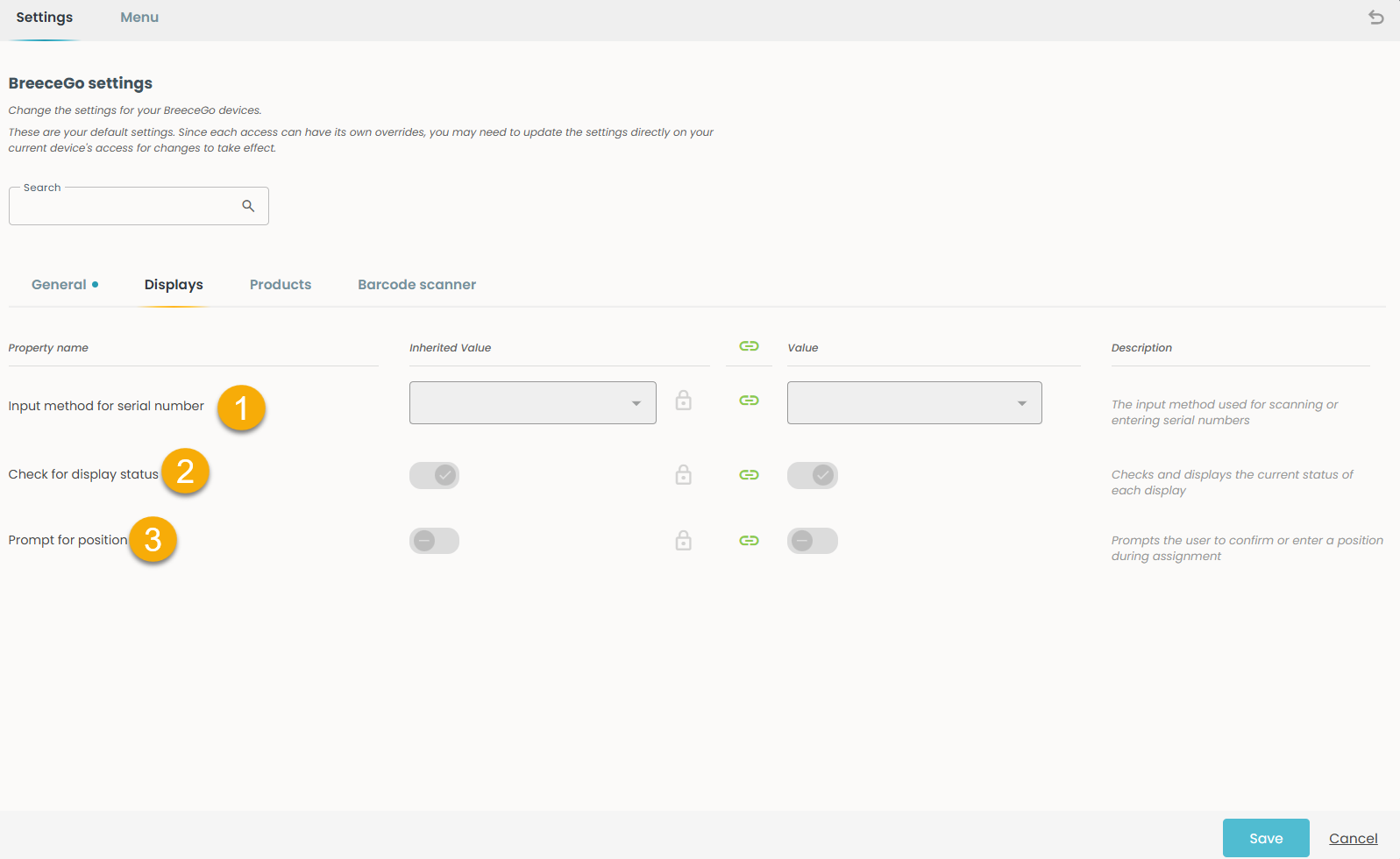
1. Input method for serial number:
Sets how the user scans or enters the serial number of a display. Click the dropdown on the right to select the preferred input method.
2. Check for display status:
When switched on, BreeceGo automatically checks and shows the current status of each display. Currently switched on (shown by the tick on the toggle).
3. Prompt for position:
When switched on, BreeceGo asks the user to confirm or enter the position of a display during the assignment process. Currently switched off.
2.1.3 Products
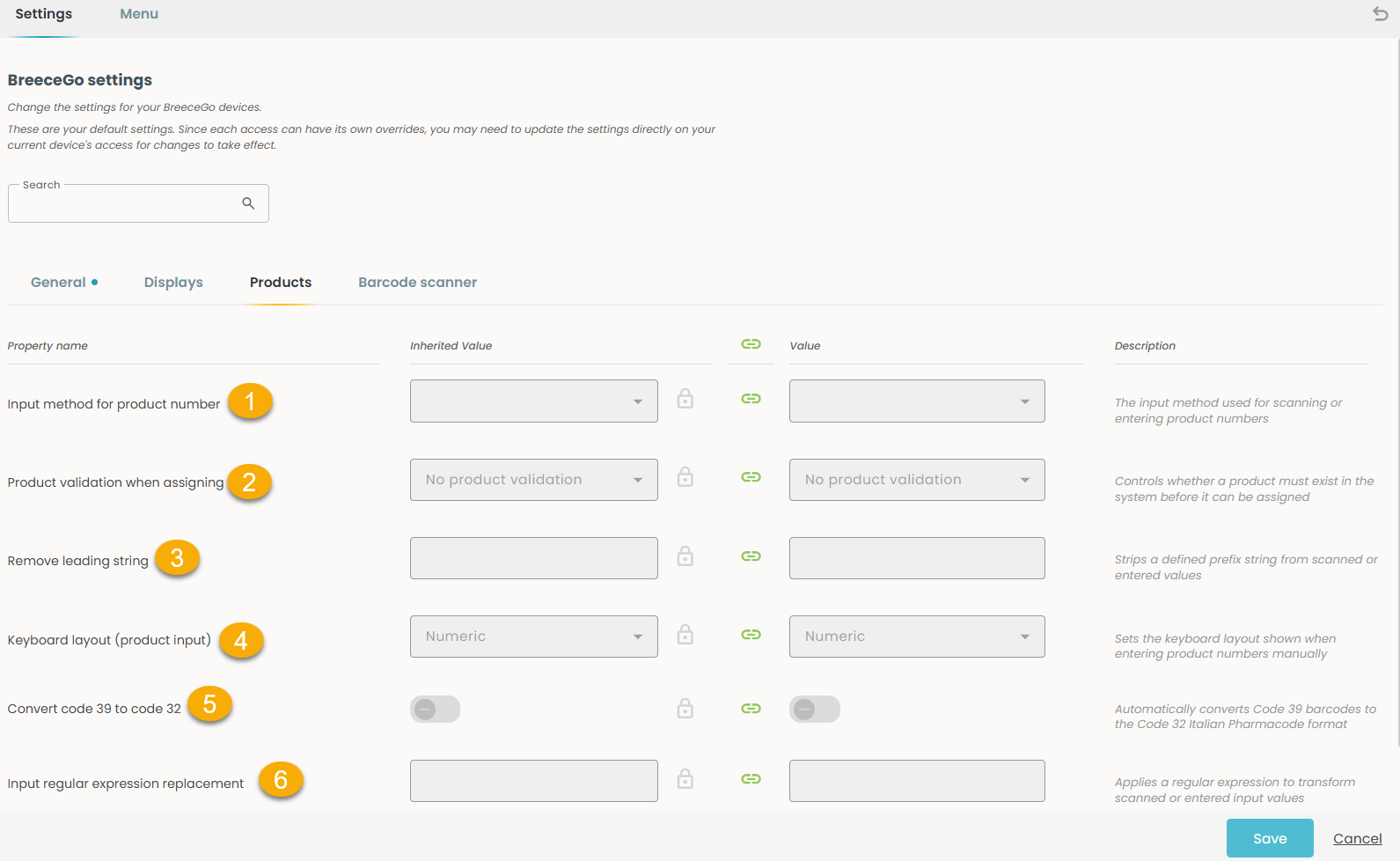
1. Input method for product number: Sets how the user scans or enters a product number.
Click the dropdown to select the preferred input method.
2. Product validation when assigning: Controls whether a product must already exist in the system before it can be assigned to a display.
3. Remove leading string: Strips a defined prefix string from scanned or entered values. BreeceGo will automatically strip it from any scanned or entered values.
4. Keyboard layout (product input): Sets the type of keyboard shown when the user enters product numbers manually.
5. Convert code 39 to code 32: When switched on, BreeceGo automatically converts Code 39 barcodes to the Code 32 Italian Pharmacode format.
6. Input regular expression replacement: An advanced setting that applies a regular expression to automatically transform scanned or entered product values.
2.1.4 Barcode scanner
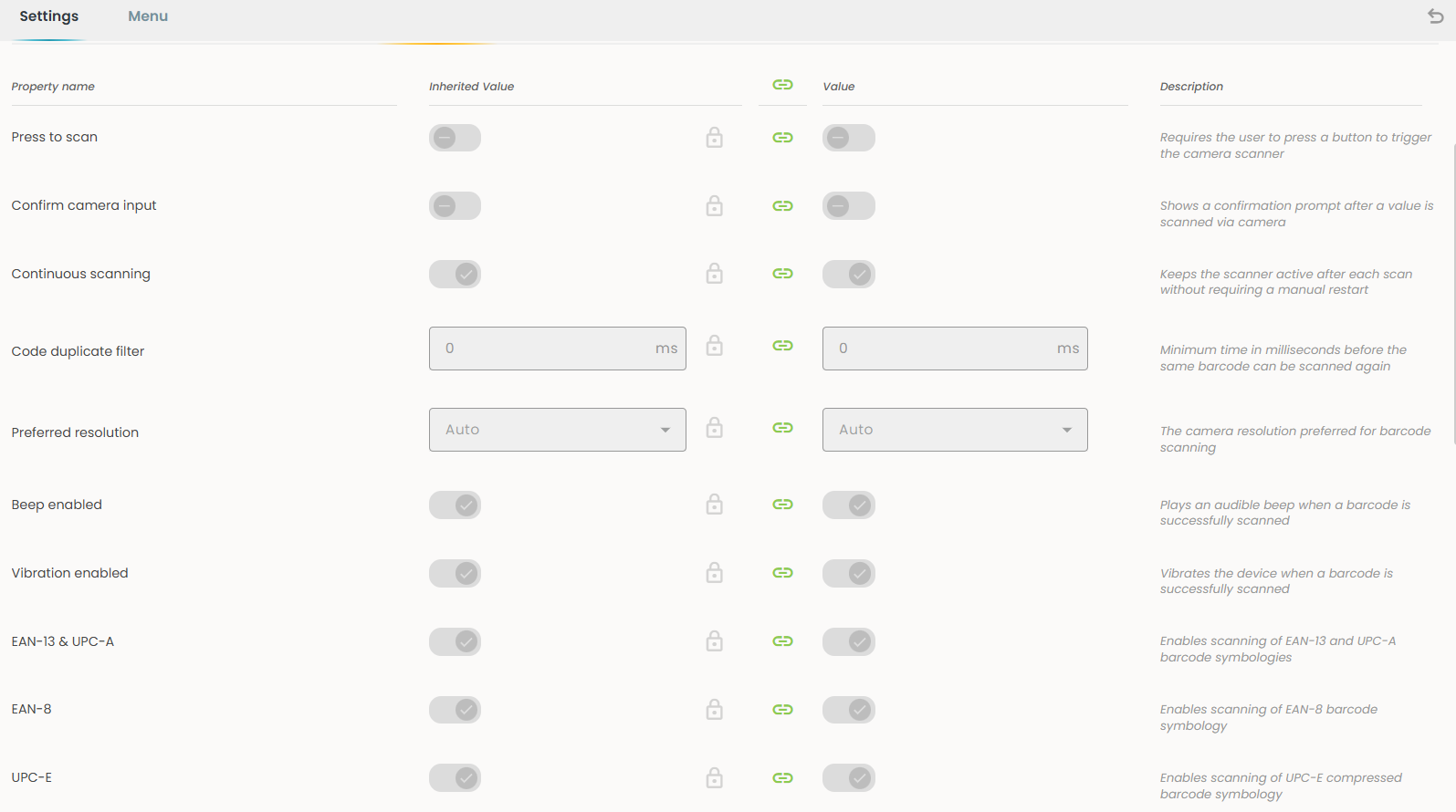
This tab controls how the camera and barcode scanner behave when the user can price tags in BreeceGo.
| Number | Description |
|---|---|
| 1 | Press to scan: When switched on, the user must press a button to trigger the camera before it scans. |
| 2 | Confirm camera input: Shows a confirmation prompt after each scan so the user can verify the value before it is accepted. |
| 3 | Continuous scanning: Keeps the scanner active after each scan without needing manual restart. |
| 4 | Code duplicate filter: Sets a waiting time (in milliseconds) before the same barcode can be scanned again. |
| 5 | Preferred resolution: Sets the camera resolution used for scanning. |
| 6 | Beep enabled: Plays a beep sound each time a barcode is successfully scanned. |
| 7 | Vibration enabled: Vibrates each time a barcode is successfully scanned. |
| 8 | EAN‑13 & UPC‑A: Enables scanning of EAN‑13 and UPC‑A barcodes. |
| 9 | EAN‑8: Enables scanning of EAN‑8 barcodes, a shorter version of EAN‑13 used on small products. |
| 10 | UPC‑E: Enables scanning of UPC‑E barcodes, a compressed format used on small packaging. |
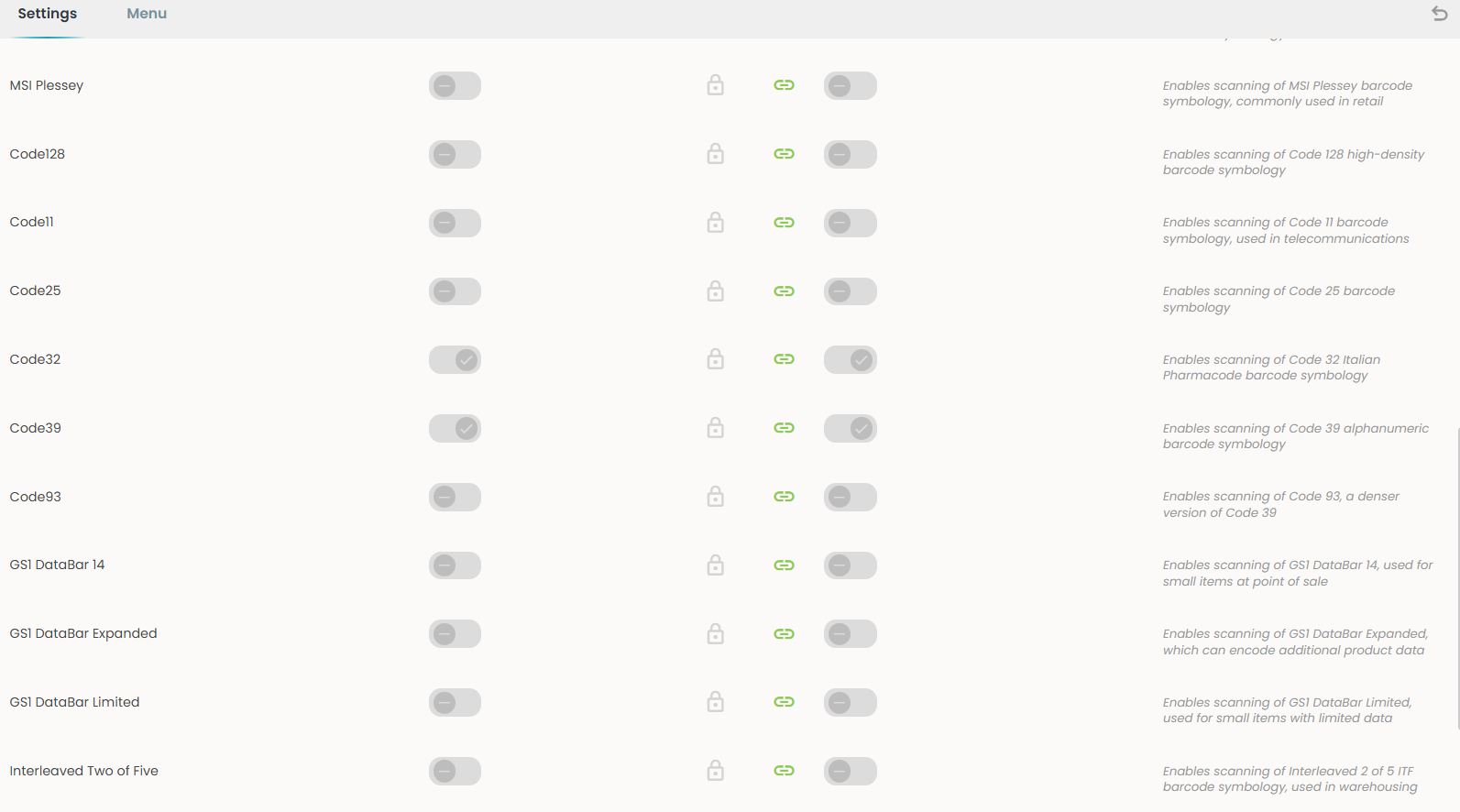
| 11 | MSI Plessey: A barcode format commonly used in retail environments. |
| 12 | Code128: A high‑density barcode format that stores a large amount of information. |
| 13 | Code11: A barcode format used mainly in telecommunications. |
| 14 | Code25: A simple barcode format used in warehouses and industrial environments. |
| 15 | Code32: The Italian Pharmacode format used in pharmaceutical products. |
| 16 | Code39: A widely used barcode format that supports letters and numbers. |
| 17 | Code93: A denser version of Code39 that stores more data in less space. |
| 18 | GS1 DataBar 14: Used for small items at point of sale. |
| 19 | GS1 DataBar Expanded: Stores additional product data. |
| 20 | GS1 DataBar Limited: Compact format for small items with limited data. |
| 21 | Interleaved Two of Five: Commonly used in warehousing and logistics. |
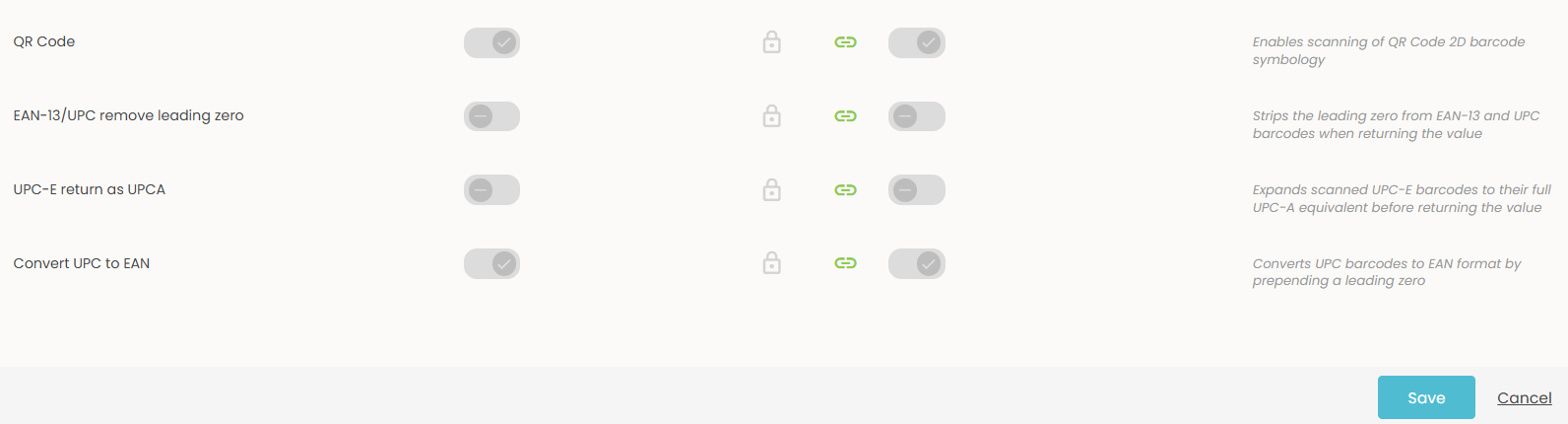
| 22 | QR Code: Enables scanning of QR codes. |
| 23 | EAN‑13/UPC remove leading zero: Automatically removes the leading zero when reading these barcodes. |
| 24 | UPC‑E return as UPC‑A: Expands UPC‑E into full UPC‑A format before returning the value. |
| 25 | Convert UPC to EAN: Converts UPC barcodes to EAN format by adding a leading zero. |
2.2 Menu
- Click the small settings icon (⚙) in the top-right corner of the Mobile App page.
- Click 'Menu'.

The BreeceGo Menu page shows a list of every feature that can appear in the BreeceGo app.
Each row represents a menu item that may appear on the user’s phone.
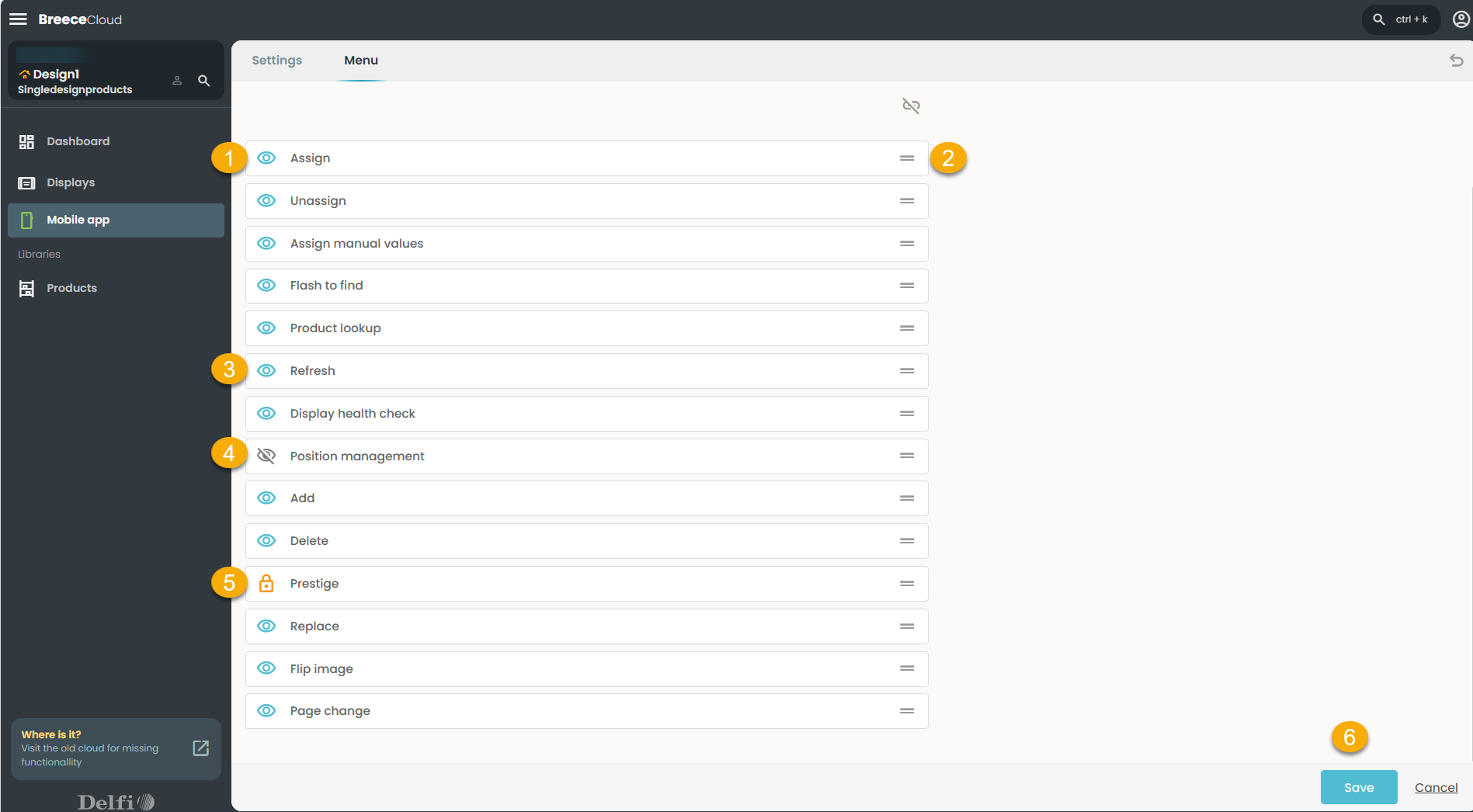
Each row has two things on it:
1.  Indicates the item is visible to the user.
2.  Lets you drag and rearrange the item’s position.
3.  Indicates the item is hidden to the user.
4. Marks the item as accessible only to administrators.
The list of actions and their corresponding functions from the screenshot above:
1 | Assign — allows the user to assign a product to an electronic shelf label display. |
2 | Unassign — allows the user to remove a product from a display. |
3 | Assign manual values — allows the user to manually enter product values onto a display without using the product catalogue. |
4 | Flash to find — triggers a flashing LED light on a specific display so staff can physically locate it on the shelf. |
5 | Product lookup — allows the user to search for a product and see which display it is assigned to. |
6 | Refresh — forces a display to update and show the latest product information. |
7 | Display health check — checks the current status and battery level of a display. |
8 | Position management — allows staff to manage the position of a display on a shelf. |
9 | Add — adds a new display to the system. |
10 | Delete — removes a display from the system. |
11 | Prestige — a special display mode for premium product presentation. |
12 | Replace — allows the user to swap one display for another. |
13 | Flip image — rotates the image shown on a display. |
14 | Page change — switches the display to show a different page of content. |
2.3 Change the settings for BreeceGo at the user level
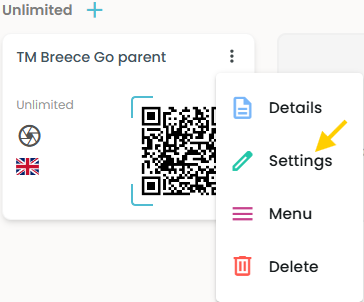
Click on the menu actions (...) of an Access.
2.3.1 Details
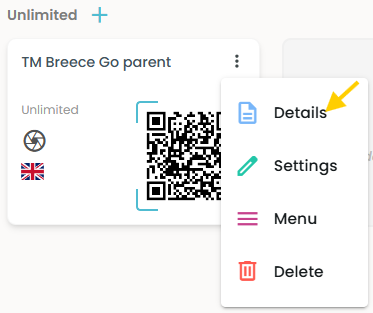
- Click 'Details' in the Access menu.
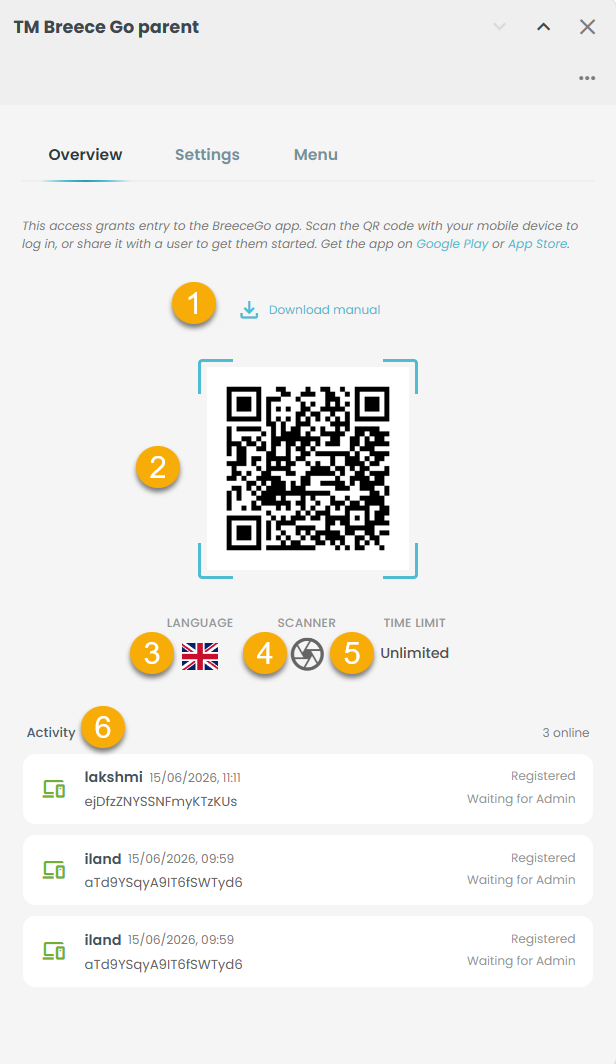
A slide‑in opens with three tabs: Overview (default), Settings, and Menu.
2.3.1.1. Overview
1. Download manual : Tap above the QR code to get a printable quick‑start guide for staff.
2. QR code : The center QR code is what staff scan to log in to BreeceGo.
3. Language : Select the language for the session.
4. Scanner : Uses the phone camera as the default scanning method.
5. Time limit : Set to Unlimited, so staff remain logged in until they manually log out.
6. Activity : Shows all devices that have logged in using this code. Each entry shows:
- Username - the name of the device
- Date and time - when the device last registered
- Device ID - the unique identifier of the device
- Status - Registered / Waiting for Admin
2.3.2 Settings
2.3.2.1 General:
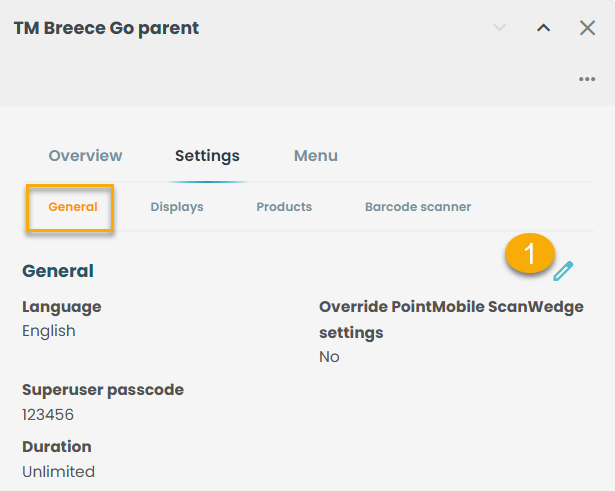
- Click on the edit icon
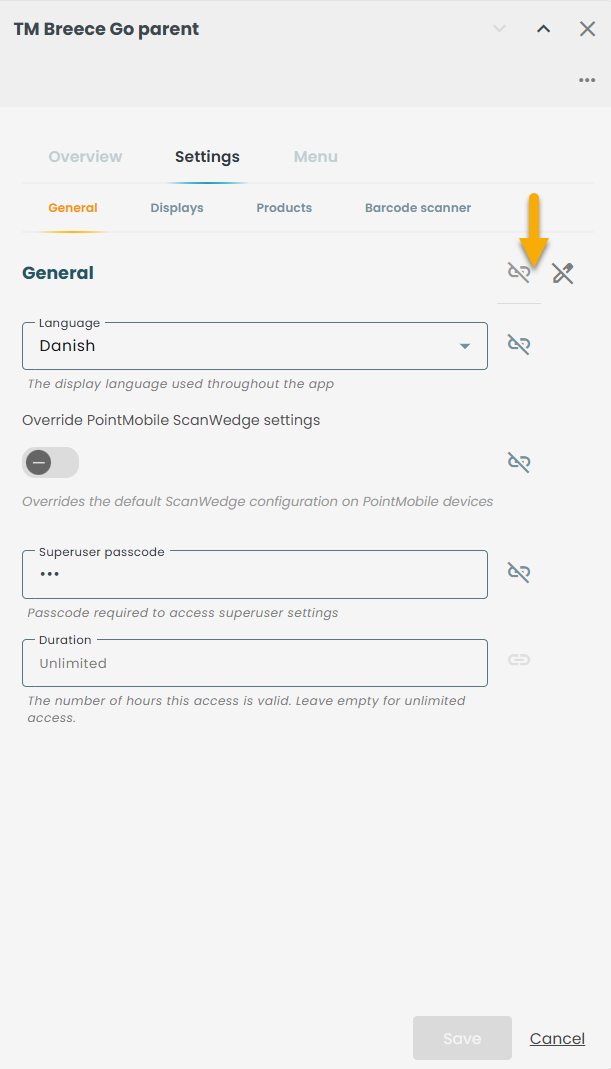
The page switches from read-only view to edit mode.
The fields become active and editable.
You will also notice two new icons appear at the top:
 Link all — Click to sync all settings back to the Group default in one action.
 Unlink all — Click to make all settings independent from the Group default.
2.3.2.2 Displays
This tab shows the same display‑related options you already know from the main BreeceGo settings
Displays the same fields as in section 2.1.2 and functions in the same way as described in section 2.1.1
2.3.2.3 Products
This tab contains the same product‑input settings as the main configuration.
Displays the same fields as in section 2.1.3 and functions in the same way as described in section 2.1.1
2.3.2.4 Barcode scanner
This tab shows the same barcode‑scanner options as in the main settings.
Displays the same fields as in section 2.1.4 and functions in the same way as described in section 2.1.1.
2.2.3 Menu
This Menu page works just like the main Menu configuration.
It is the same as described in section 2.2. But in this case, the user will access this page from a specific login code card.
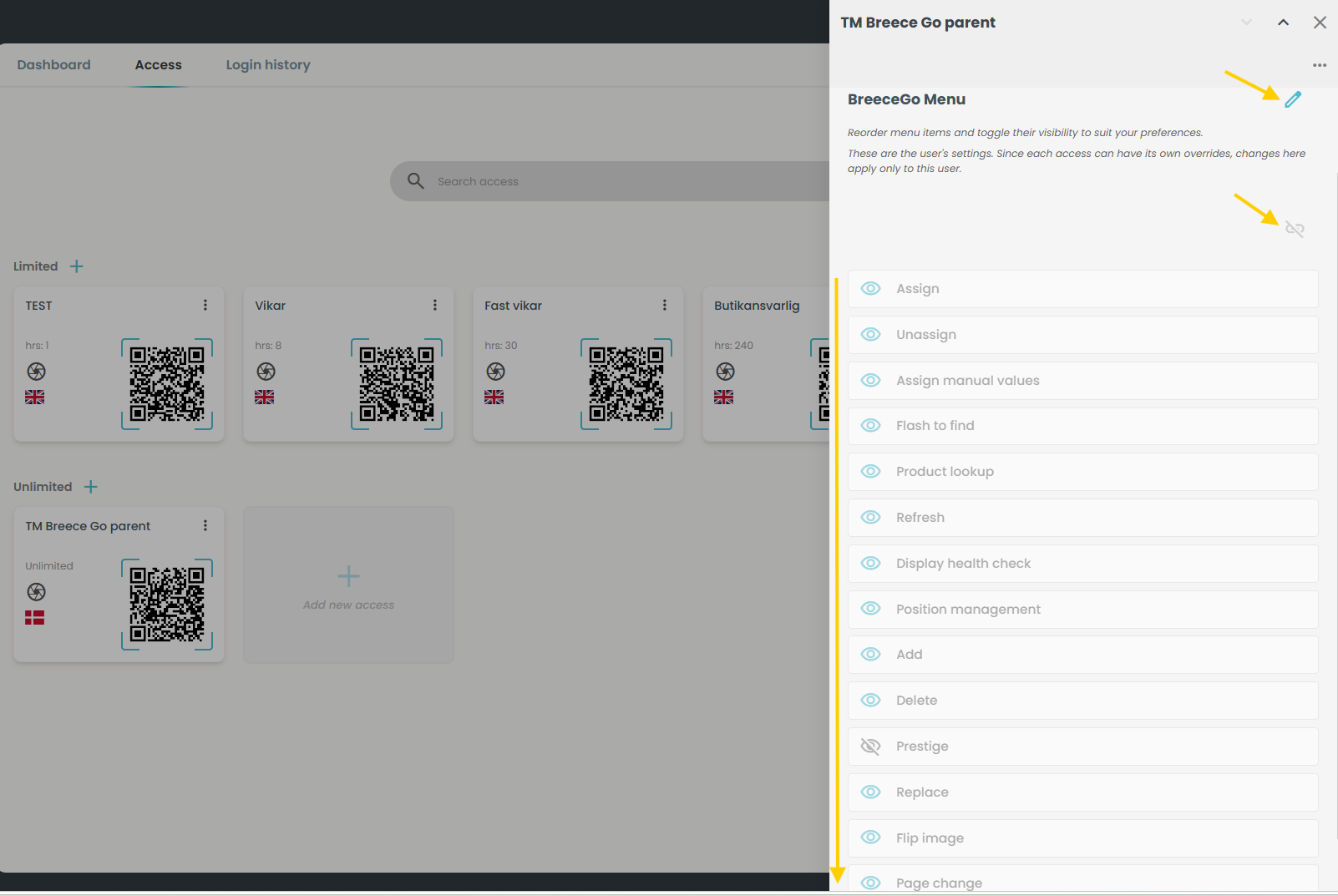
- Click the pencil icon shown in the above screenshot.
The page switches from read-only view to edit mode. The fields become active and editable.
- Link all: click the link to link all settings back to the Group default at once.
- Unlink all: click this to make all settings independent from the Group default.
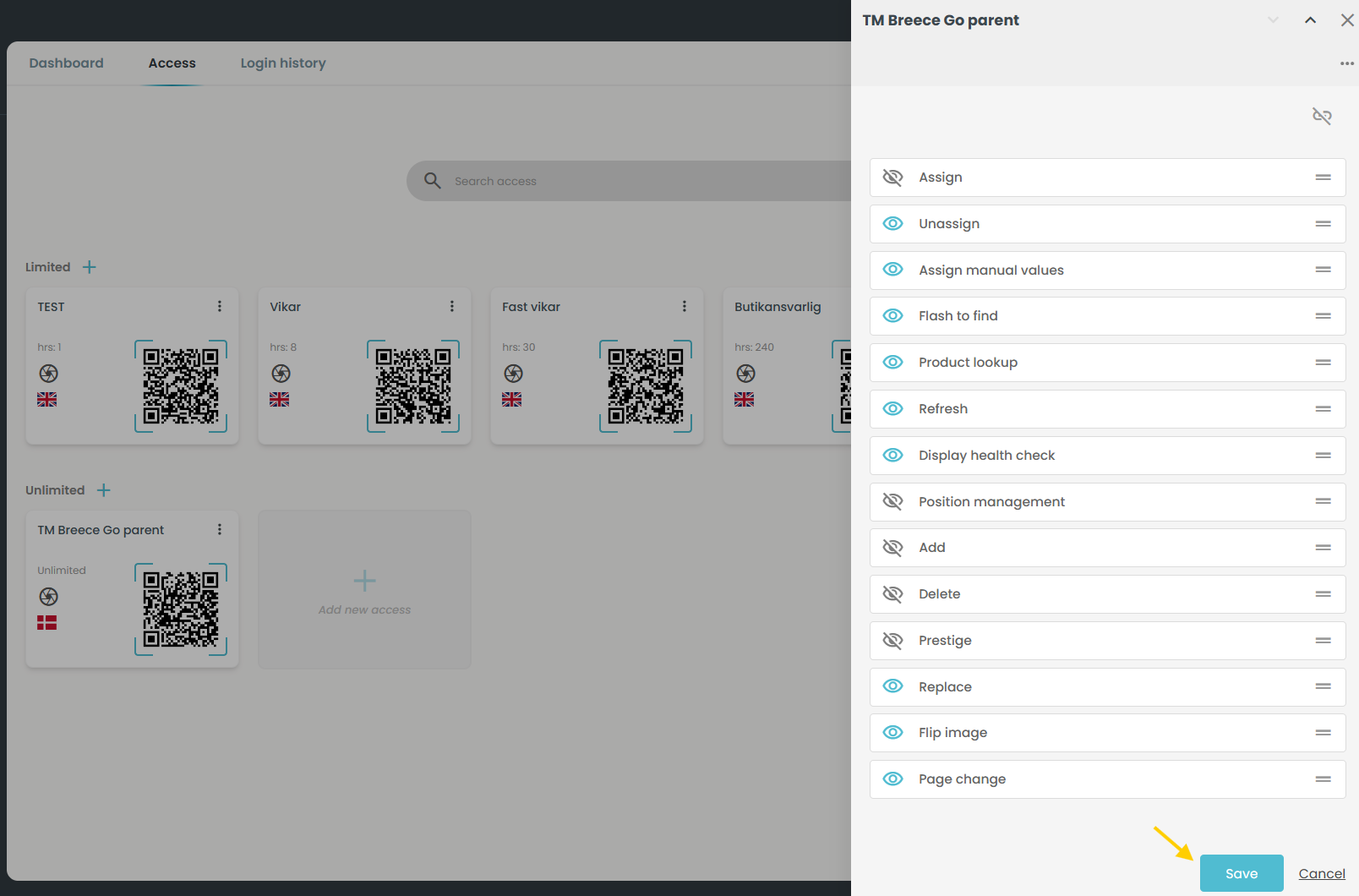
- Click 'Save' to apply your changes
2.2.4 Delete
This action can be performed in two different places.
A.
- Click 'Details' in the Access menu.
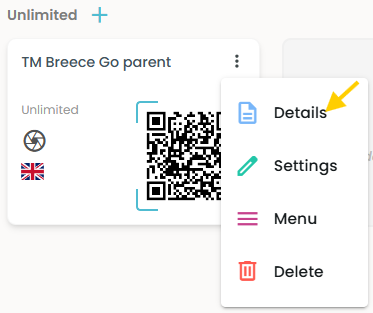
A slide‑in opens with three tabs: Overview (default), Settings, and Menu.
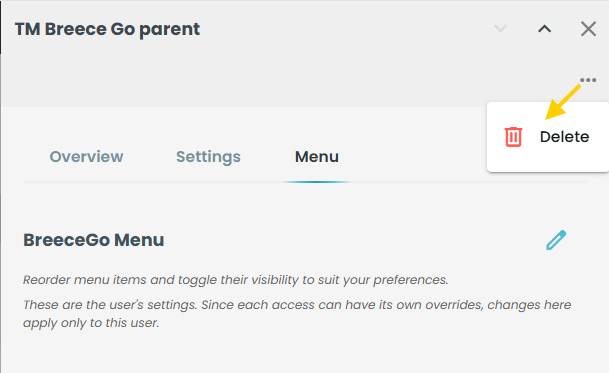
A confirmation snack bar pops up as shown below.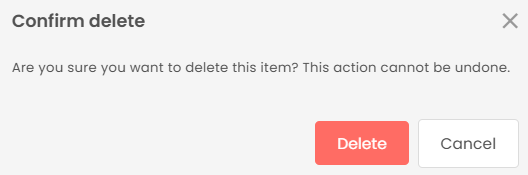
- Click 'Delete'.
The access is deleted and no longer seen in the Mobile app.
B. Delete- Directly from a specific login code card.
- Click 'Delete' in the menu actions.
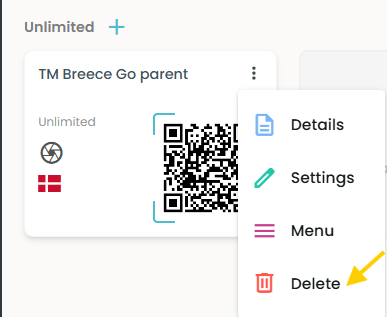
A confirmation snack bar pops up as shown below.
- Click 'Delete'.
The access is deleted and no longer seen in the Mobile app.
3. Login history
The Login History page provides administrators with a comprehensive log of device registrations and user activity across the platform.
- Click 'Login history'.
There opens a page which is shown below.
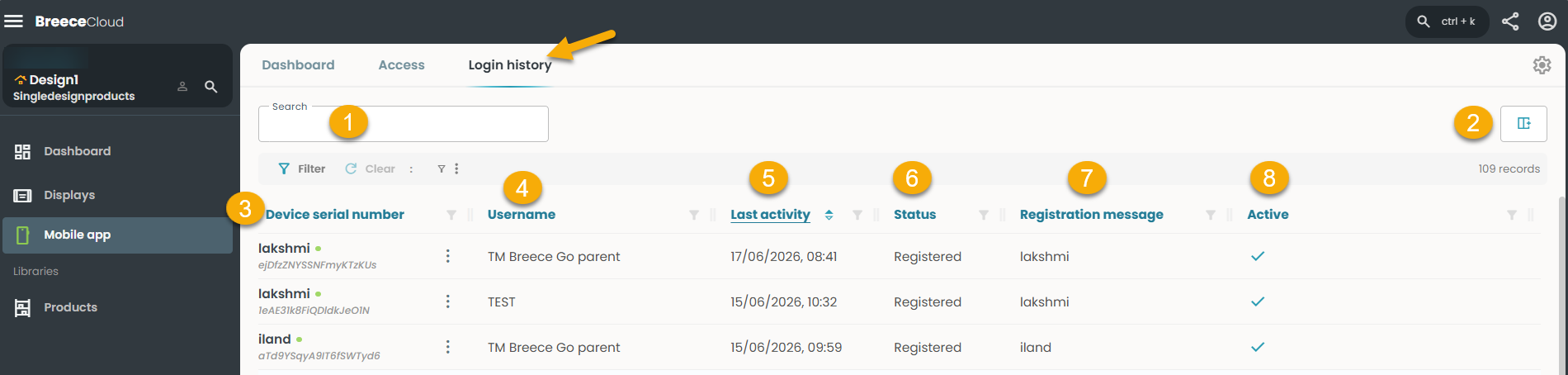
| # | Action / Description |
|---|---|
1. Search Bar | Quickly find entries by typing a device serial number, username, or registration message. |
2. Column Toggle | Use the grid icon to show or hide columns and adjust the table view. |
| 3. Device serial number | Unique device ID; a green dot shows the device is online/active. |
4. User name | The user or application profile linked to the device login. |
5. Last activity | Timestamp of the most recent login or interaction. |
6. Status | Shows whether the device is Registered or in another state. |
| 7. Registration message | Label/tag added during registration, often indicating group or deployment context. |
8. Active | A tick (✓) confirms the login entry is currently active and valid. |